
Claude desktop, side by side.
Want two Claude accounts or two chats on screen at once? SaneCode runs the official Claude desktop for each of your accounts and shows any of them side by side in one window. Split puts two next to each other, Grid shows four in a 2×2, and Canvas lets you move and resize as many as you like. Split and Grid are free; Canvas is Pro.
Windows 10 and 11, Claude desktop from claude.com or the Microsoft Store. By @inxanity06, founder of SaneCode. Updated 2026-11-16.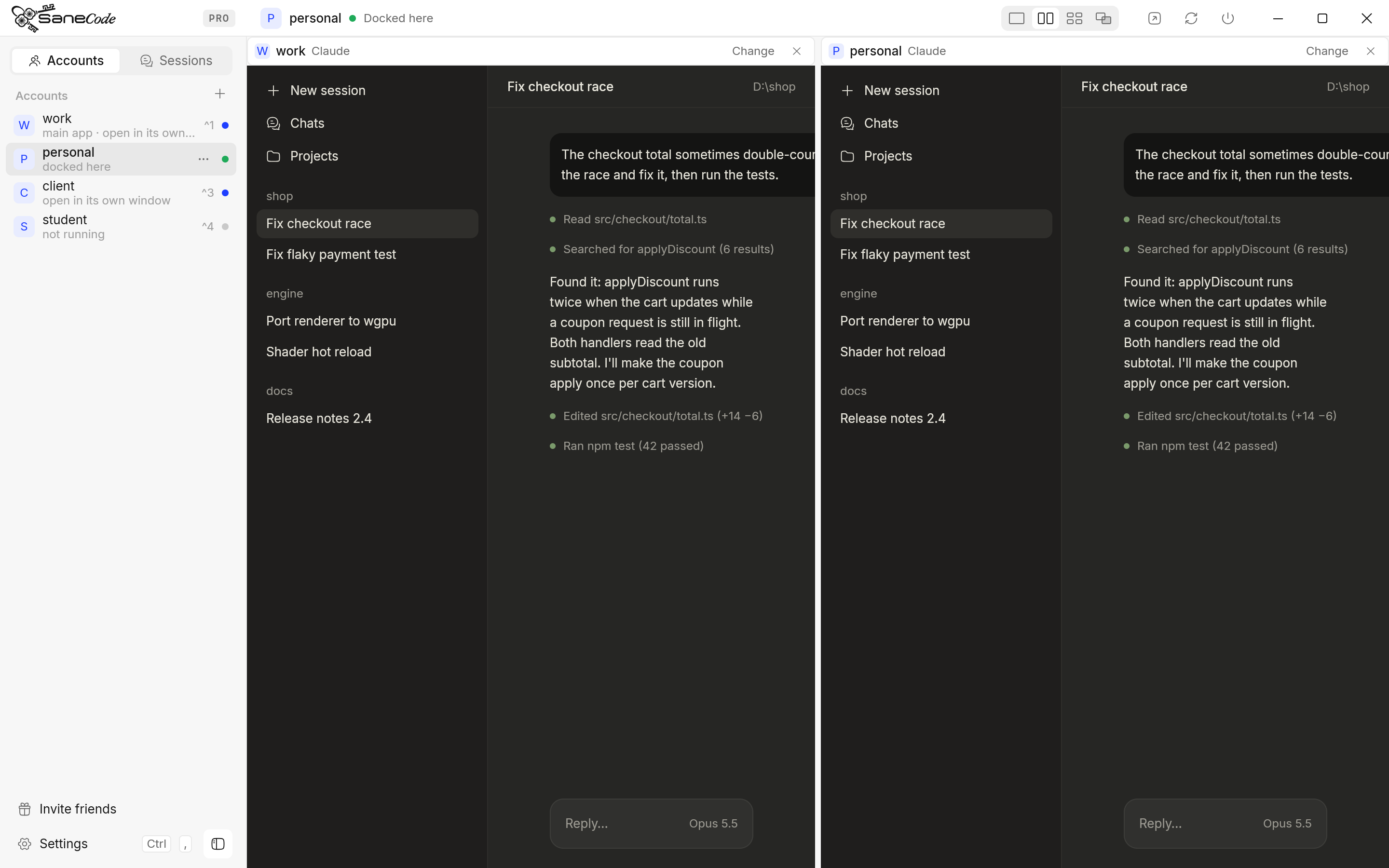
How do you put two Claude accounts side by side?
- Install SaneCode. It finds the Claude desktop you already use and brings it in, still signed in.
- Add the other account. Press + next to Accounts. A fresh Claude opens; sign in once and it stays signed in.
- Click Split in the title bar. Both Claudes sit side by side. Drag the line between them; double-click it for 50/50.
- Swap what’s in a pane with Change on its header: any account, or any chat you popped out of Claude.
It takes about two minutes. Each pane is a real Claude desktop, so Claude Code, connectors, projects and every new Claude feature work in it as usual.
Can I see two Claude chats at once? Yes, in Split.
Split shows two Claude windows next to each other, from the same account or from two different ones. Compare answers from two accounts, keep a long Claude Code task in view while you chat in another, or put a client’s Team seat beside your own plan.
- Drag the line to give one side more room; double-click it to reset
- Click a pane to type in it: the keys go to the pane you clicked
- Both accounts stay signed in, in the app and in your browser
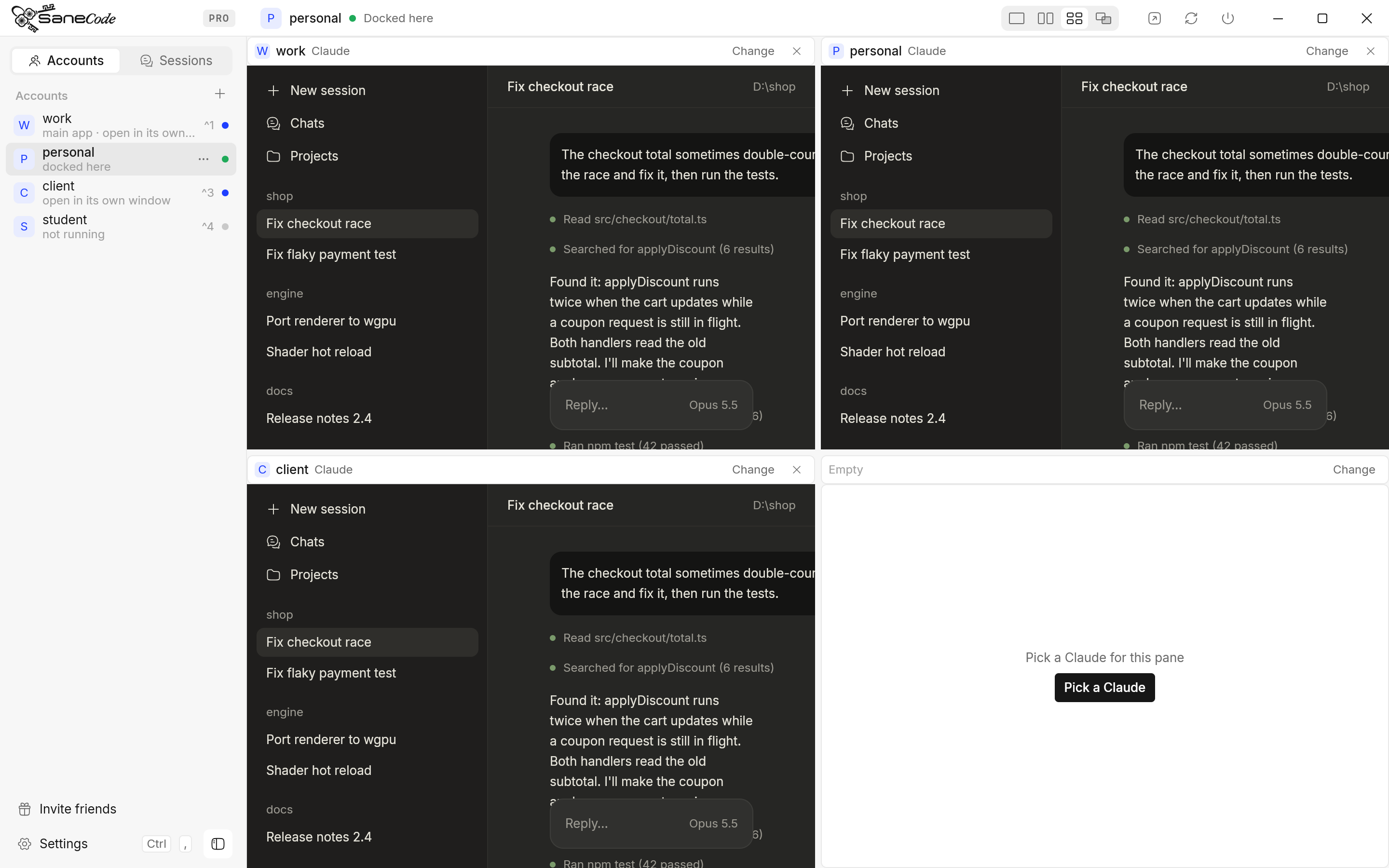
How do I watch four Claude sessions? Use Grid.
Grid shows four Claude windows in a 2×2. Pick what goes in each tile with Change, take one out with ×, and drag a header onto another tile to swap them.
- Mix accounts and chats in any tile
- × takes a pane out of the layout; that Claude keeps running
- The layout is remembered when you open SaneCode again
Can I arrange Claude windows freely? On the Canvas.
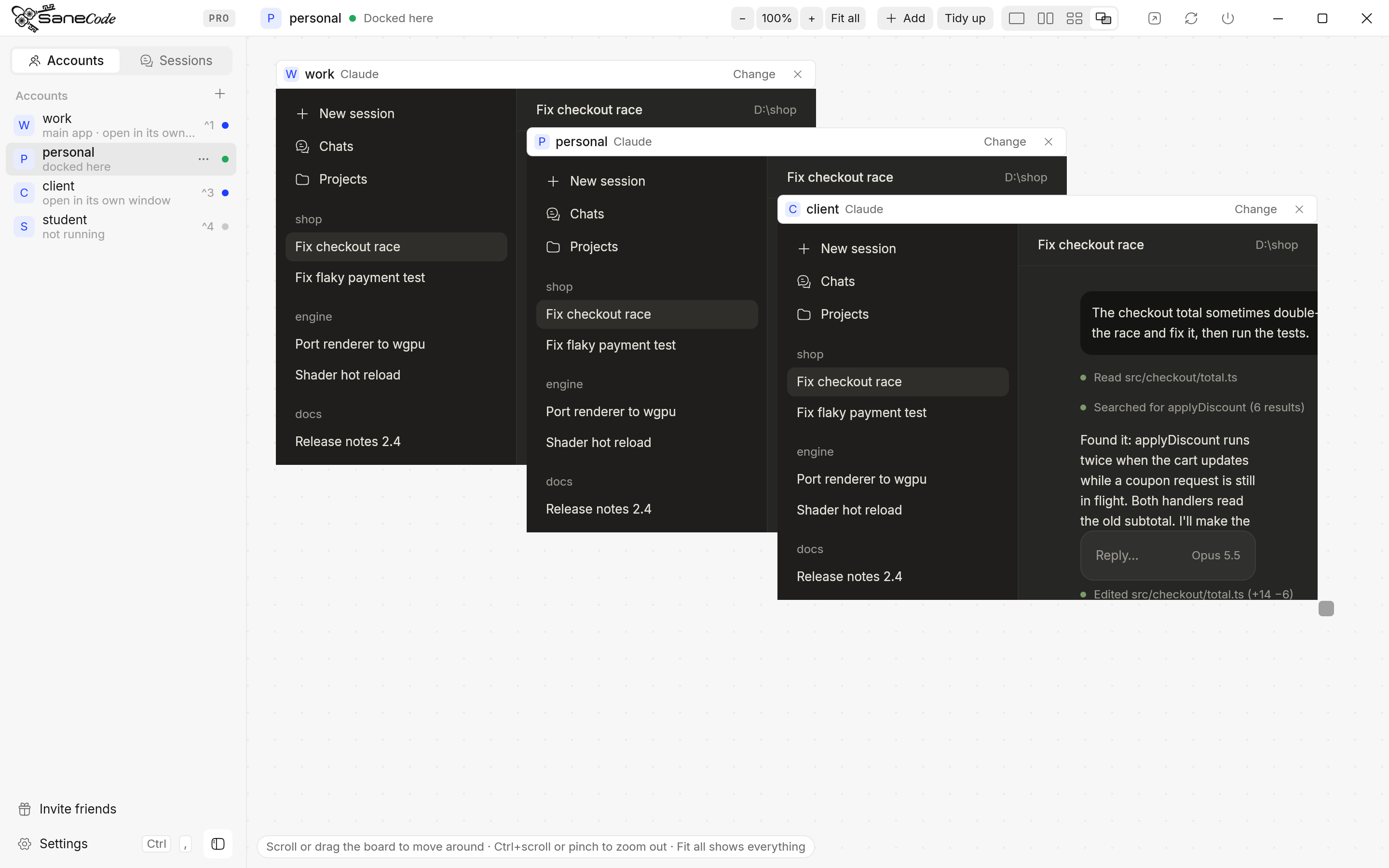
Canvas is a board inside SaneCode. Drag a window by its header to move it, drag its corner to resize it, and scroll or drag the dotted background to move around. Zoom out (Ctrl+scroll, pinch or Fit all) to see the whole board, and click a window to zoom back in to it. Add puts another Claude on the board and Tidy up arranges everything into a neat grid.
- As many Claude windows as you want, from any account
- Windows never spill over SaneCode’s sidebar or title bar
- Zoom out to see everything; click a window to zoom back in to it, live
What are the ways to run Claude side by side on Windows?
| SaneCode layouts | Two Claude copies + Windows Snap | Claude’s own pop-out chat | |
|---|---|---|---|
| Two different accounts at once | Yes | Yes, set up by hand (--user-data-dir) | No, one account |
| Stays in one window | Yes | No, separate windows | No, separate windows |
| More than two at once | Grid (4), Canvas (any) | Snap layouts | Several chat windows |
| Remembers the arrangement | Yes | No | No |
| Every account stays signed in | Yes | Yes, if set up right | Switching signs out |
| Cost | Split and Grid free; Canvas Pro | Free | Free |
Best for: Snap with two copies if you’re comfortable with command-line flags and only ever need two; Claude’s pop-out for two chats of one account; SaneCode if you use several accounts and want them arranged, signed in and remembered in one place.
Split and Grid are in the free version (up to 2 accounts). Pro, $29 a month, adds unlimited accounts, the Canvas layout, Session Relay, the tray and global hotkeys. Claude itself is billed by Anthropic as usual; SaneCode adds no usage.
Windows only, with Claude desktop from claude.com or the Microsoft Store. Zoomed out, the canvas shows pictures of the windows (taken as you zoom out); zoom in to one to use it. With many windows open, moving the canvas does more work than a two-pane split.
Install SaneCode, add your accounts, then pick a layout. The layouts guide covers every control.
Questions about Claude side by side
Can I open two Claude desktop windows side by side?
Yes. Claude desktop can pop a chat out into its own window, and SaneCode runs a separate official Claude desktop for each of your accounts. Pick Split in SaneCode’s title bar and any two of those windows sit side by side in one window, with a line you drag to resize them.
Can I use two different Claude accounts in split screen?
Yes. Each pane can show any account’s Claude or any chat, so work and personal (or a client’s Team seat and your own Pro plan) sit side by side, both signed in. Nothing signs out when you switch which one has the keyboard.
Is split screen free?
Yes. Split (two side by side) and Grid (four in a 2×2) are free. Canvas, where you move and resize any number of Claude windows freely, is part of SaneCode Pro.
Does running several Claudes at once use more of my plan?
No. Each pane is the official Claude desktop app signed into its own account, so every message counts against that account’s plan exactly as it would on its own. SaneCode doesn’t send anything through the API or the Agent SDK.
Can I zoom out on the canvas?
Yes. Ctrl+scroll or pinch on the board, or press Fit all. Zoomed out, each window shows as a picture taken as you zoomed out, so the whole board fits on screen; click a picture to zoom back in to that window, live.
What happens to a chat I pop out of Claude?
It opens as its own window on the desktop, as it would without SaneCode. SaneCode shows “+1 window” in its title bar; click it to bring the chat in as a tab, or pick it for any pane with Change.
Does it work on Mac?
Not yet. SaneCode is for Claude desktop on Windows 10 and 11 (from claude.com or the Microsoft Store). macOS doesn’t let one app host another app’s windows the way Windows does.